 SumiCAD
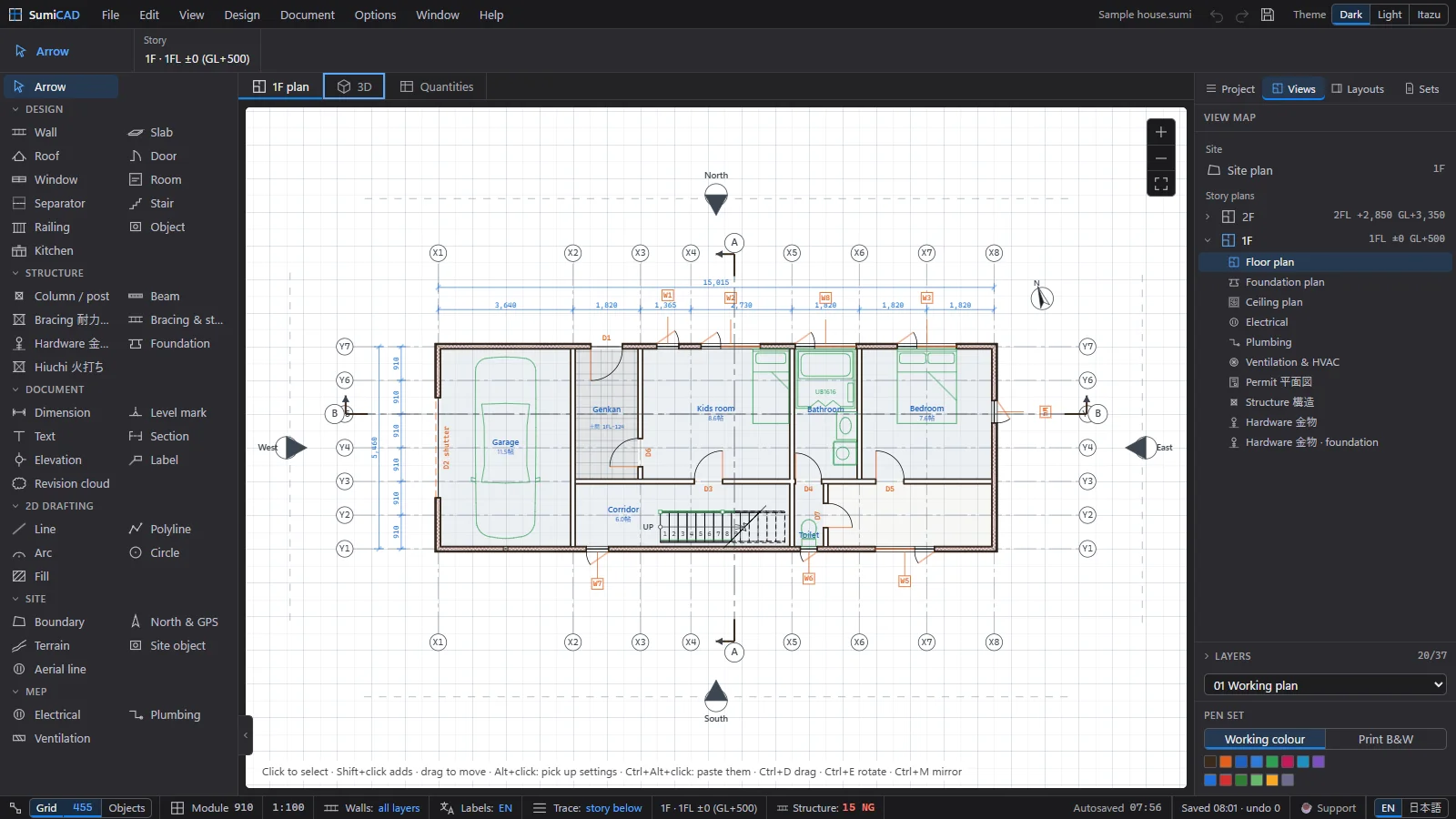
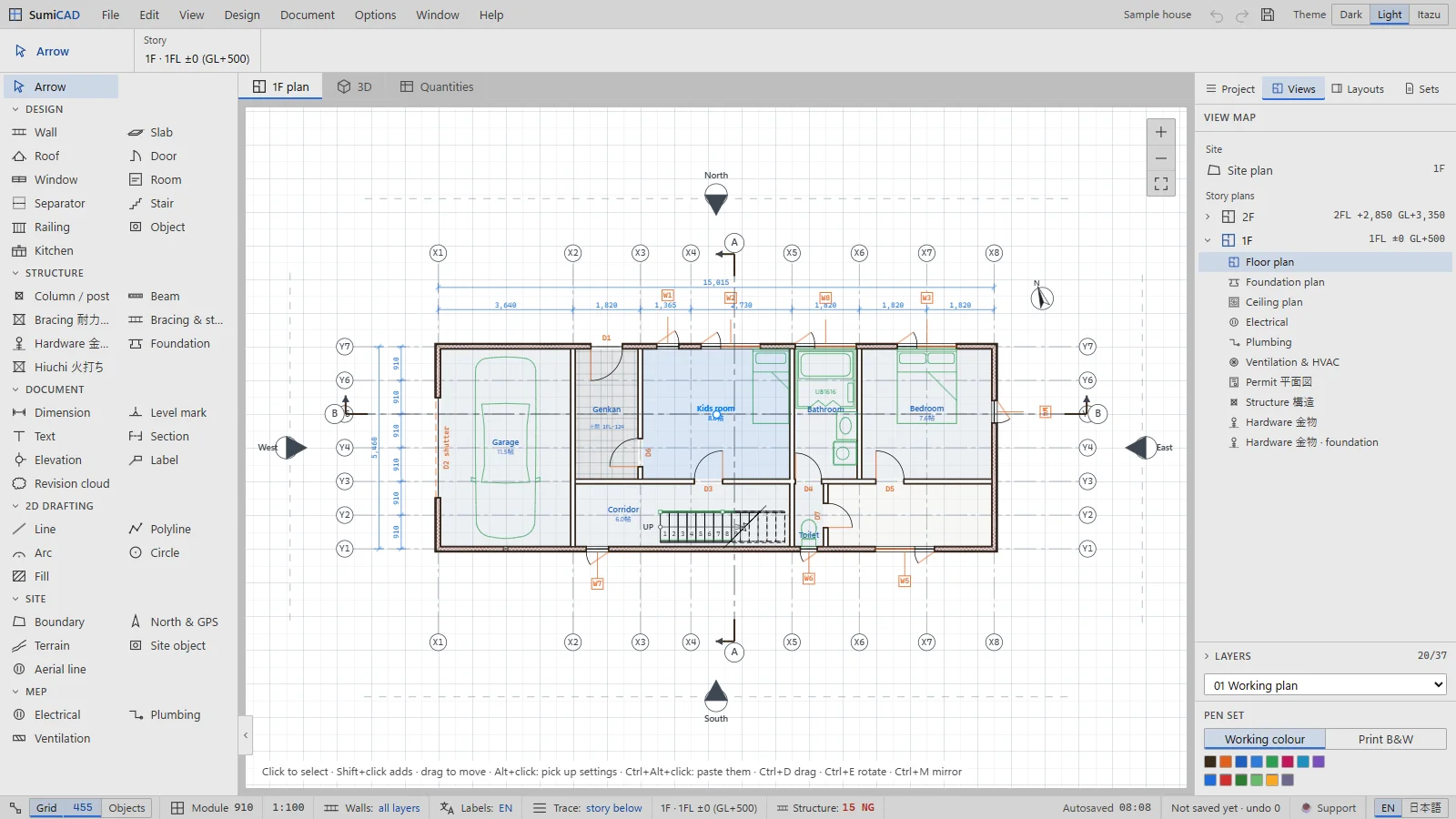
The screen
The toolbox
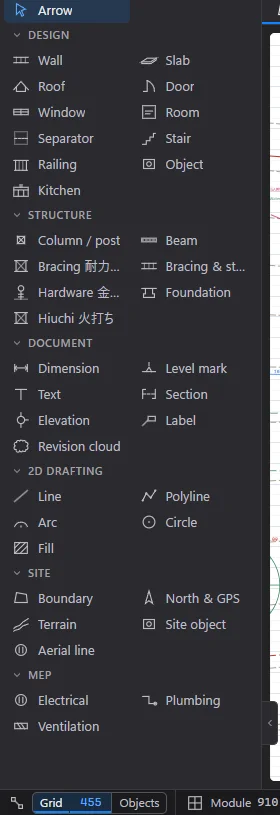
The toolbox on the left holds every tool, grouped by job:
- DESIGN — Arrow, Wall, Slab, Roof, Door, Window, Room, Separator, Stair, Railing, Object, Kitchen
- STRUCTURE — Column / post, Beam, Bracing 耐力壁, Bracing & structure, Hardware 金物, Foundation, Hiuchi 火打ち
- DOCUMENT — Dimension, Level mark, Text, Section, Elevation, Label, Revision cloud
- 2D DRAFTING — Line, Polyline, Arc, Circle, Fill
- SITE — Boundary, North & GPS, Terrain, Site object, Aerial line
- MEP — Electrical, Plumbing, Ventilation
The Info Box
The strip under the menu bar is the Info Box: it shows the settings of the active tool (or of the selected element). Set them before you draw — for a wall, for example: the geometry (Chain / Single / Rectangle), the build-up, the thickness, the reference line, the top, and the layer.
Plans, 3D and sheets
Above the canvas, tabs switch between the floor plan, the 3D window and Quantities. Opening a sheet from the layout book adds its own tab next to them. F2 always takes you back to the plan — model tools work in the plan.
The Navigator
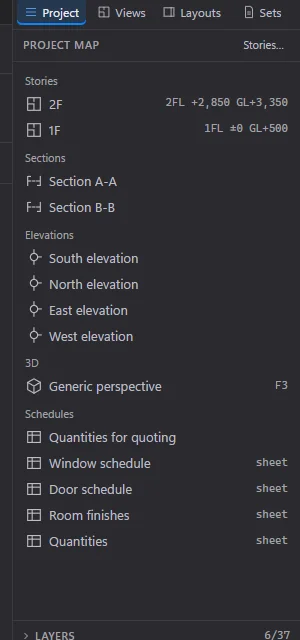
On the right, the Navigator has four tabs:
- Project — the project tree.
- Views — the view map: the site plan and, per story, the floor plan, foundation plan, ceiling plan, electrical, plumbing and ventilation & HVAC views, plus Permit 平面図, Structure 構造 and the hardware views.
- Layouts — the layout book (the drawing sheets).
- Sets — saved sets for publishing.
Below it: the layer of new elements (for example 01 Working plan) and the pen set
(Working colour / Print B&W).
The status bar

From left to right: the snap Grid (455), Objects snap, the planning Module 910, the plan
scale, the wall layer filter, the Labels language for drawings, Trace (show the story below
faintly), the current story (1F · 1FL ±0 (GL+500)), the Structure check pill (green OK / red
NG), the last autosave time, the save state and undo count, Support, and the EN | 日本語
switch for the interface language.
Themes
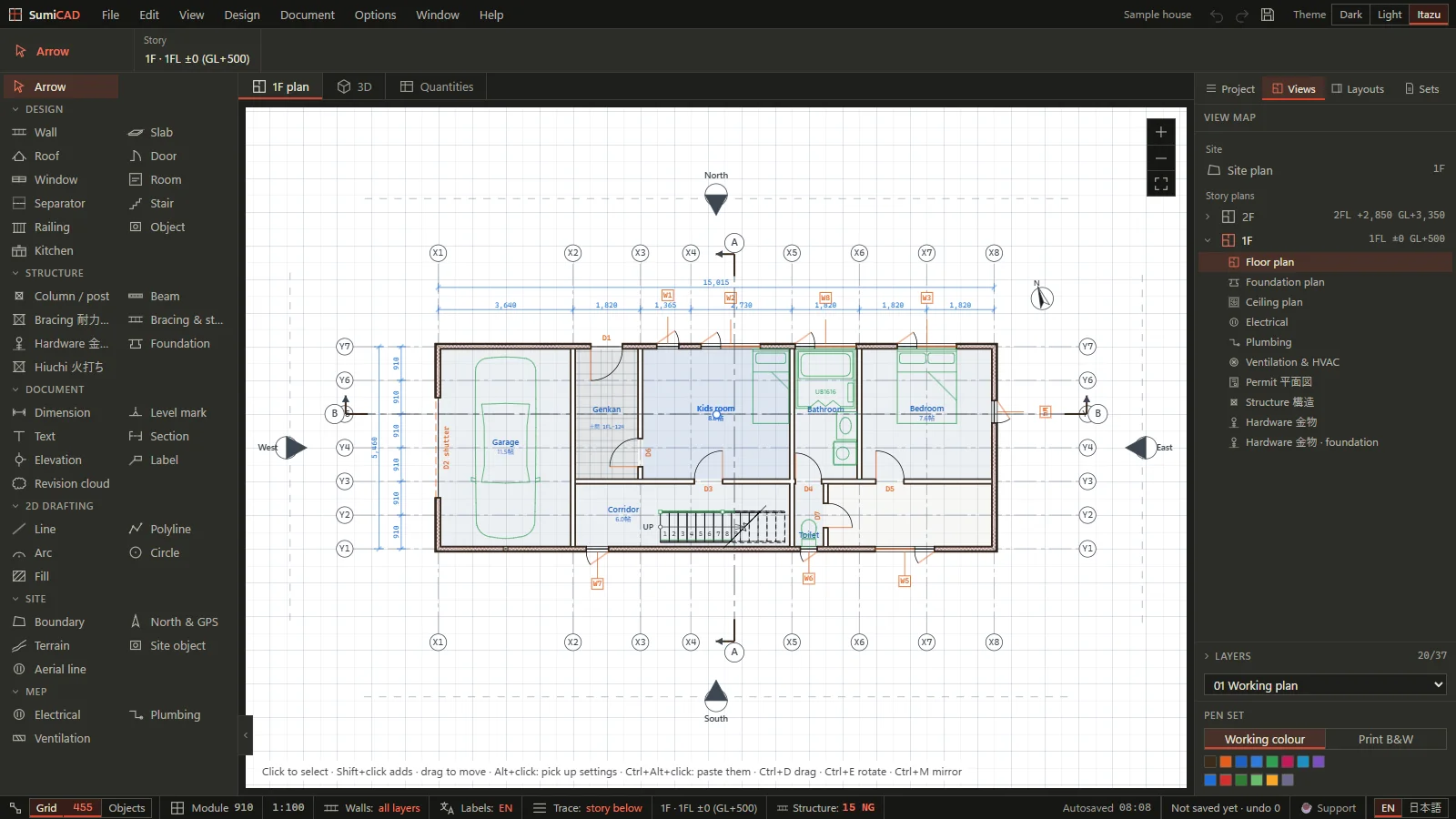
Top right: Theme › Dark · Light · Itazu. All screenshots in this guide use Dark, except these two:
Find any command
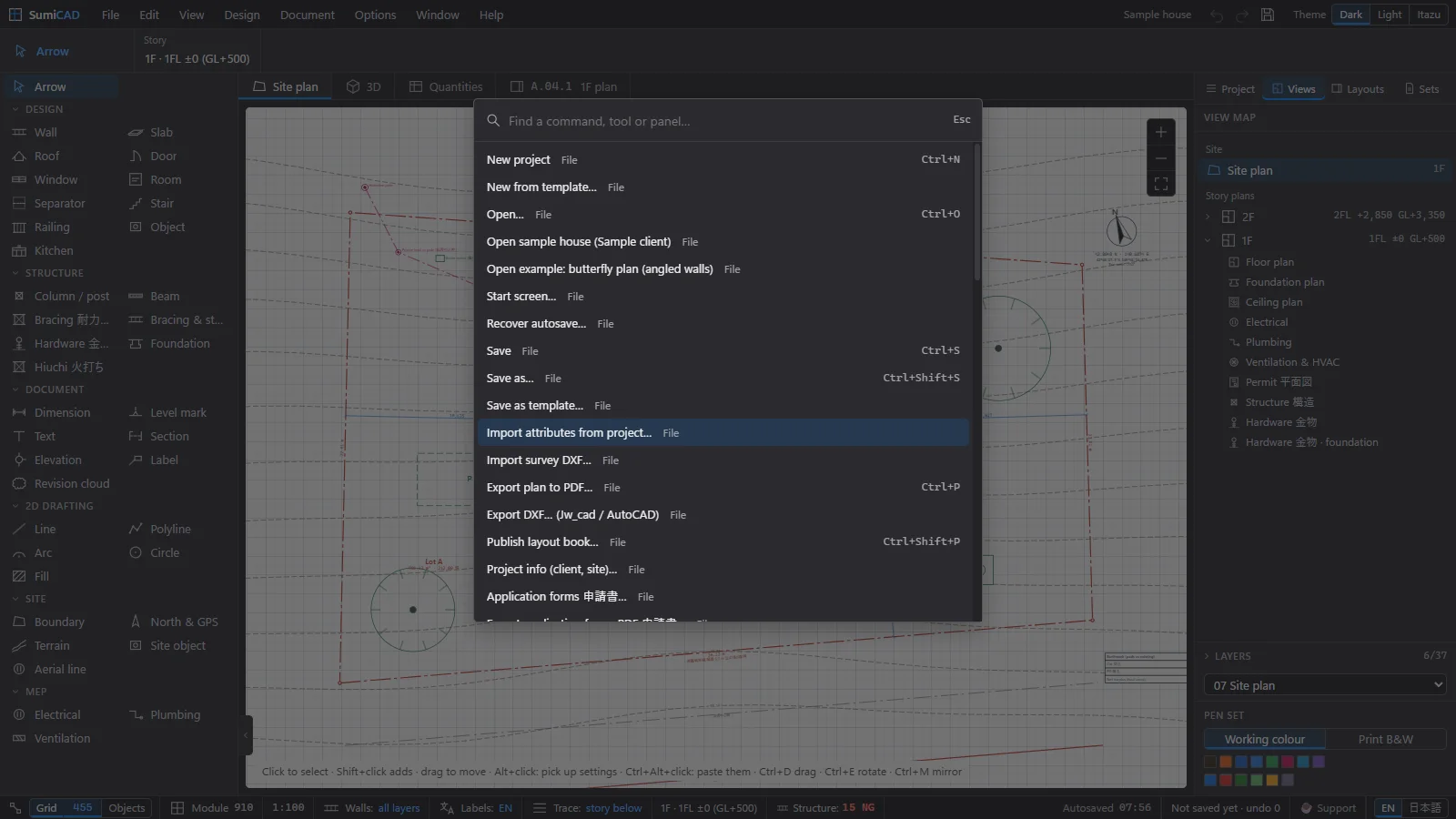
Press Ctrl+K and type a word: it finds commands, tools and panels by name, in English or Japanese.
Right-click menus and hints
Right-click an element, the empty plan, or a Navigator row for its context menu (Shift+F10 works from the keyboard). The hint line just above the status bar always explains what the active tool expects next — when in doubt, read that line.